
Acronis Cyber Protect · Cloud backup
Cloud backup for business: every server and every computer, ready to restore
Automatic, encrypted backup of your servers, computers and virtual machines to the Acronis cloud. When something is deleted, corrupted or encrypted, you restore a single file or an entire machine.
- Windows, Linux, macOS
- VMware and Hyper-V
- AES-256 encryption
- Self-service restore
You can start with one device and add devices at any stage.
The source
- Servers
- Computers
- Virtual machines
- Databases
Acronis cloud
Encrypted copies with version history
- Full backup
- Incremental backup
- Schedule
What you can restore
- A single file
- An entire machine
- To different hardware
Automatic backup
On a schedule, with no intervention
AES-256 encrypted
In transit and at rest
Flexible restore
From a single file to an entire machine
Protected against ransomware
Including an immutable copy
What is backed up
The whole work environment, from the same system
One agent covers most of the environments a business runs, with no separate product for each one.
Physical servers
Windows Server and Linux servers, with a full system backup (image) or a backup of selected folders.
Desktops and laptops
Windows and macOS workstations, including those of employees who work from home.
Virtual machines
VMware vSphere and Microsoft Hyper-V, including agentless backup at the host level.
Databases and applications
Application-aware backup for Microsoft SQL Server, Exchange, MySQL, MariaDB, Oracle and SAP HANA.
Microsoft 365 and Google Workspace
Email, files and team sites, with cloud-to-cloud backup and no installation.
Mobile devices
Contacts, photos and files from iOS and Android devices.
Protection plan
Set it up once, and it runs on its own
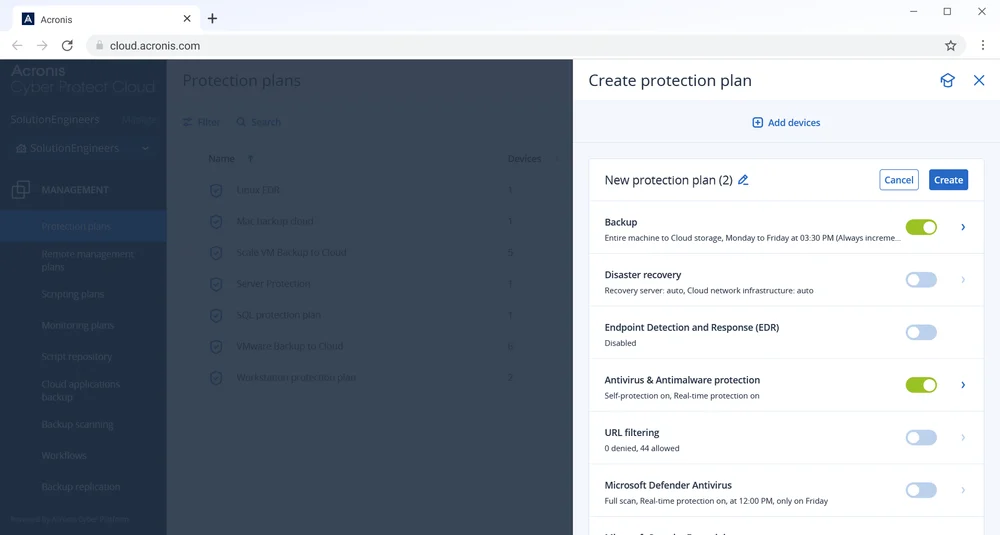
A protection plan defines what is backed up, when, and how long it is kept. You apply it to a single device or to a whole group, and every new device that joins receives it automatically.
After the first full backup, only the changes are transferred, so the backup is short and does not burden the network.
- Backup of the entire machine or of selected files and folders
- A schedule and retention policy that fit the needs of the business
- Incremental backup that transfers only what has changed
- An alert when a backup fails or when a device has not been backed up for a long time
Restore
A backup is only worth something if you can restore from it
Several ways to get back to work, depending on what happened.
File or folder
Find the file inside the backup and restore only that file, from any saved point in time.
Entire machine
Restore the operating system, the applications, the settings and the data in one operation.
To different hardware
Acronis Universal Restore restores the system even to a server or computer of a different model.
Run from the backup
Acronis Instant Restore starts the backup as a virtual machine, so you are back at work before the full restore has finished.
Points in time
Go back to the version from yesterday, from last week or from before the change that caused the problem.
Self-service restore
You can restore from the console at any time, without waiting for anyone.
How it works
From installation to restore
There is no need for a backup server in the office, for tapes or for external disks. The agent is installed on the device and sends the encrypted backup directly to the Acronis cloud.
The key to success is a restore test. In the managed service, we carry it out after setup, and again periodically.
Agent installation
A short installation on every server and computer, remotely or on site.
First full backup
All the data is encrypted and uploaded to the cloud.
Incremental backups
According to the schedule, only the changes are transferred.
Monitoring and alerts
The console shows what succeeded and what needs attention.
Restore
A file, a folder or an entire machine, as needed.
Protected backup
The backup itself needs protection too
Modern ransomware looks for the backups first, so that nothing is left to restore from. That is why a backup to an external disk or a network drive that is connected to the same network is not enough.
With Acronis, the backup sits outside your network, it is encrypted, and it can be set to be immutable for a period you choose. In addition, Active Protection protects the agent and the backup files against modification.
See the full cyber securityLocal backup only
- Sits on the same network as the computers
- Ransomware can encrypt it too
- A fire, theft or power fault affects both
- Depends on a person remembering to swap the disk
Acronis cloud backup
- An offsite copy, encrypted with AES-256
- Option of a copy that cannot be deleted or changed
- Self-protection for the agent and the backup files
- Runs automatically, with an alert on every failure
How to work with us
Managed by us or managed by you
Exactly the same backup. You choose who operates it.
Managed backup
We are responsible for making sure the backup runs and that it can be restored from.
- Setup and agent installation
- Schedule and retention policy configuration
- Monitoring of every backup and handling of failures
- Periodic restore tests and guidance during a real restore
Self-managed backup
You receive a console and manage it yourselves.
- Full access to the Acronis console
- Installation and configuration at your own pace
- Self-service restore from any point in time
- Our support when something does not work out
Comparison
Local backup versus cloud backup
The differences you feel on the day you need to restore.
| Topic | External disk or NAS | Acronis cloud backup |
|---|---|---|
| Location of the copy | In the office, next to the source | Offsite, in the cloud |
| Operation | Usually manual | Automatic, on a schedule |
| Ransomware protection | Exposed like the rest of the network | Encrypted, with the option of a locked copy |
| Full-machine restore | Reinstall, then copy the files | Full restore, including to different hardware |
| Monitoring | You find out it failed only when you need it | An alert for every failed backup |
| Growth | Buy more disks | Add devices and storage with a click |
FAQ
Frequently asked questions about cloud backup
What is the difference between file backup and backup of the entire machine?
File backup saves the folders and files you selected. Backup of the entire machine (image) also saves the operating system, the applications and the settings, so you can restore a whole server or computer without reinstalling everything. You can combine both in the same protection plan.
How often does the backup run?
According to the schedule defined in the protection plan: once a day, several times a day or at another frequency. During the scoping stage, we will match the frequency to the amount of data the business can afford to lose.
How long are the backups kept?
According to the retention policy you choose. You can keep daily, weekly and monthly versions for different periods, in line with the needs of the business and the regulatory requirements that apply to it.
Does the backup slow down the computers or the network?
After the first backup, only the changes are transferred, and you can schedule the backup for quiet hours and limit the bandwidth it uses. In most cases, users do not notice it.
Who can access our backups?
The backups are encrypted with AES-256. Access to the console is protected by permissions and two-step verification, and only the people you have designated can view the backups or restore from them.
Can a VPS or a website hosted with you be backed up as well?
Yes. The agent can be installed on VPS servers and on dedicated servers, so they are backed up to the Acronis cloud separately from the infrastructure they run on. Tell us what you host with us and we will include it in the quote.
What happens if we need to restore and have no IT person?
In the managed service, we guide the restore together with you. With self-managed backup, you can also contact our support in Hebrew.
Quote
How much will it cost to back up your business?
Tell us how many servers and computers you have and roughly how much data, and we will get back to you with a clear quote.
- A quote based on the number of devices and the data volume
- Option of a managed service or self-managed
- No commitment